Backups are boring until you lose data. Then, they are the most exciting thing in the world. Restic is a modern backup program that is fast, secure, and efficient. It dedupes data automatically, encrypts specifically, and supports almost every storage backend imaginable.
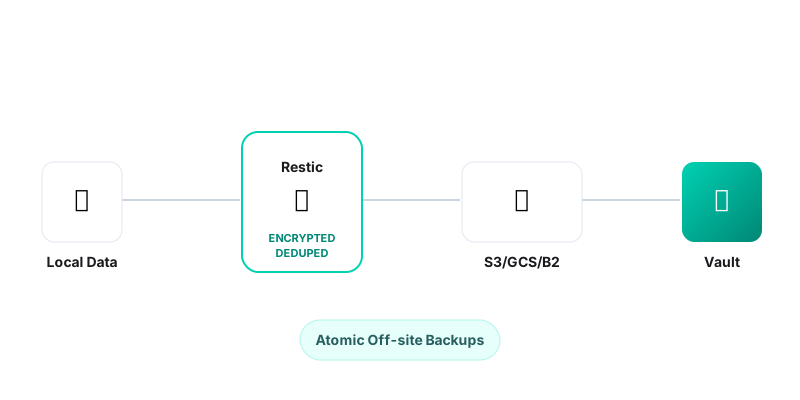
Why Restic?
- Encryption: All data is encrypted with AES-256 before leaving your machine.
- Deduplication: Only changes are saved. Moving a file doesn't trigger a re-upload.
- Single Binary: Easy to deploy on any server (Linux, macOS, Windows).
Step 1: Installation
# On Debian/Ubuntu
apt-get install restic

# On macOS
brew install restic
Step 2: Initialize Repository
Restic works with "repositories". This can be a local folder, SFTP server, or S3 bucket. Let's use an S3-compatible bucket (like AWS S3, MinIO, or Wasabi).
Export your credentials (avoid putting them in history by using a file or env var):
export AWS_ACCESS_KEY_ID="your-key"
export AWS_SECRET_ACCESS_KEY="your-secret"
export RESTIC_PASSWORD="strong-repo-password"
export RESTIC_REPOSITORY="s3:s3.amazonaws.com/my-backup-bucket"

# Initialize
restic init
Step 3: Backing Up
Running a backup is as simple as pointing restic to a directory:
restic backup /var/www /etc/nginx /home/user/dataStep 4: Automation
Don't rely on manual backups. Create a simple cron job or systemd timer.
# /etc/cron.daily/restic-backup
#!/bin/bash
source /root/.restic-env
restic backup /data --exclude-file=/root/.backup-exclude
restic forget --keep-last 7 --keep-daily 7 --keep-weekly 4 --keep-monthly 6 --prune
The forget command is crucial—it cleans up old snapshots according to your policy (e.g., keep last 7 days), and prune actually removes the unreferenced data from the storage to save money.